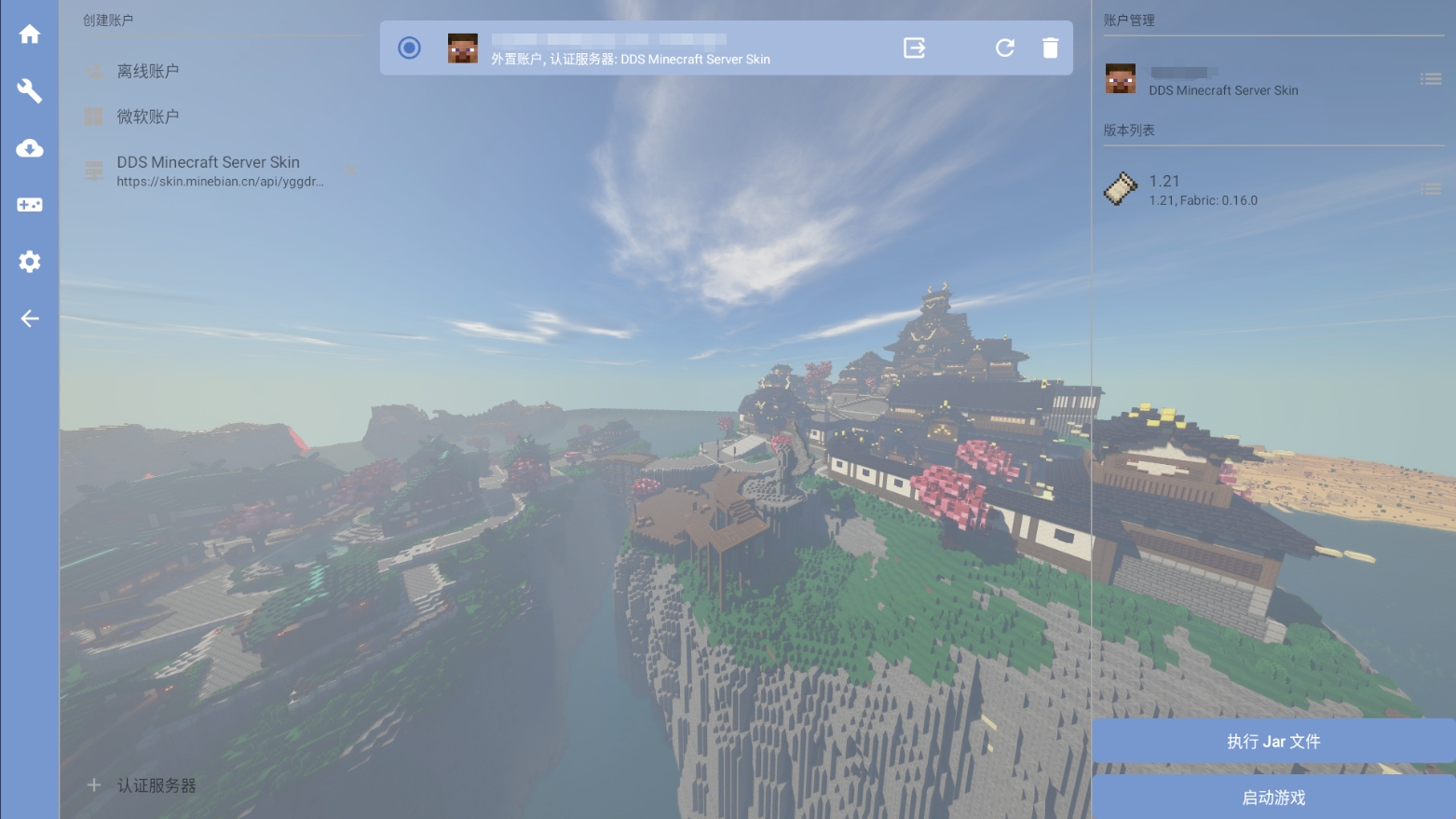
Using External Login
The server supports both premium login and external login. External login uses the skin site: DDS Minecraft Server Skin.
If you're using a mobile device, the skin site interface may not look very friendly. Please search on your own for "how to set browser to display desktop version of a website" or similar guides.
Note: The skin site only serves as a login service — it is NOT used to set your skin. For how to set your skin, type /skin in the server for details.
Skin Site Setup
First, you need to open the skin site DDS Minecraft Server Skin in your browser. You'll see a page like the one shown below. Tap Login in the top-right corner to register an account.
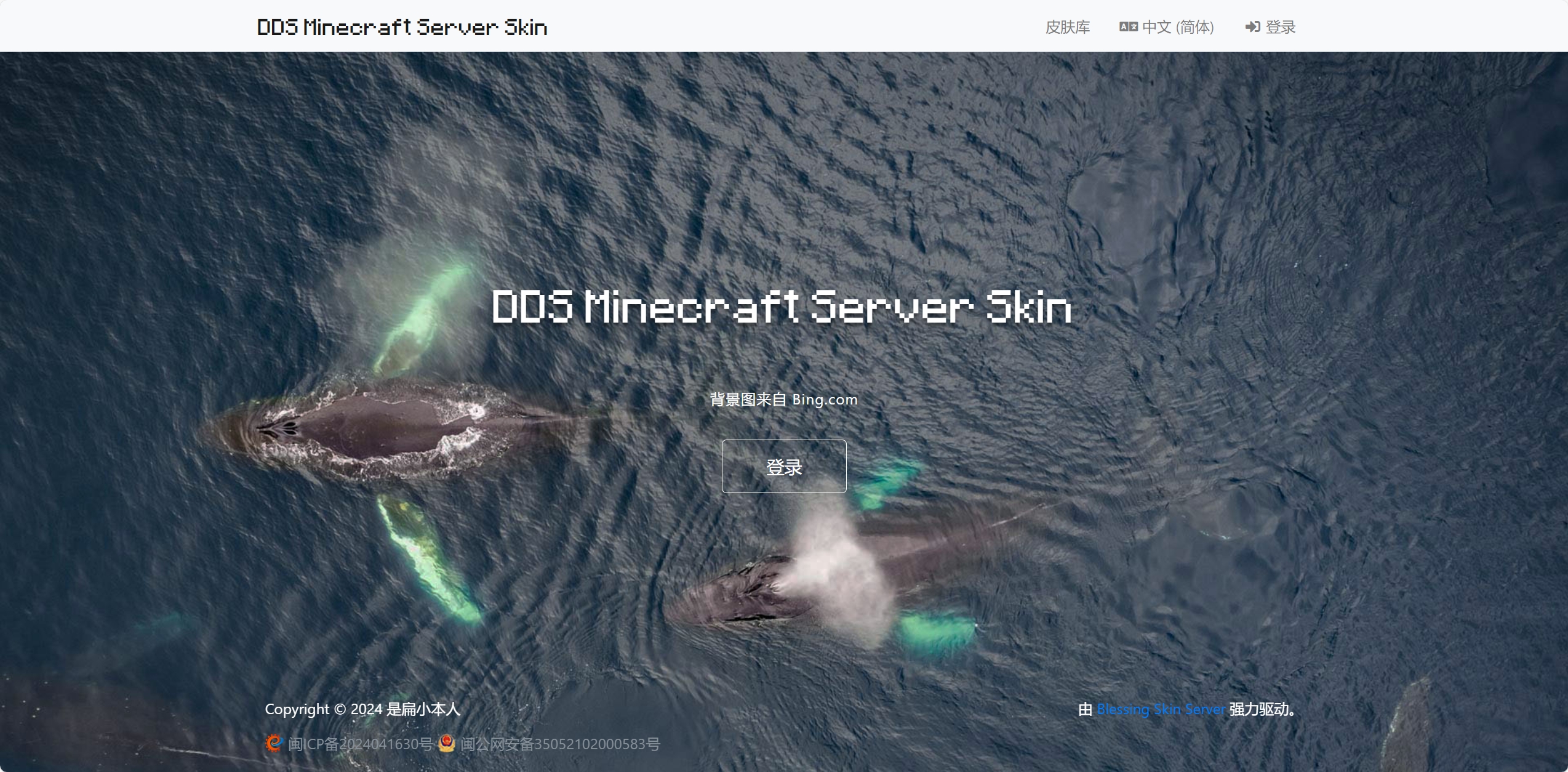
Tap Register a new account in the bottom-left corner.
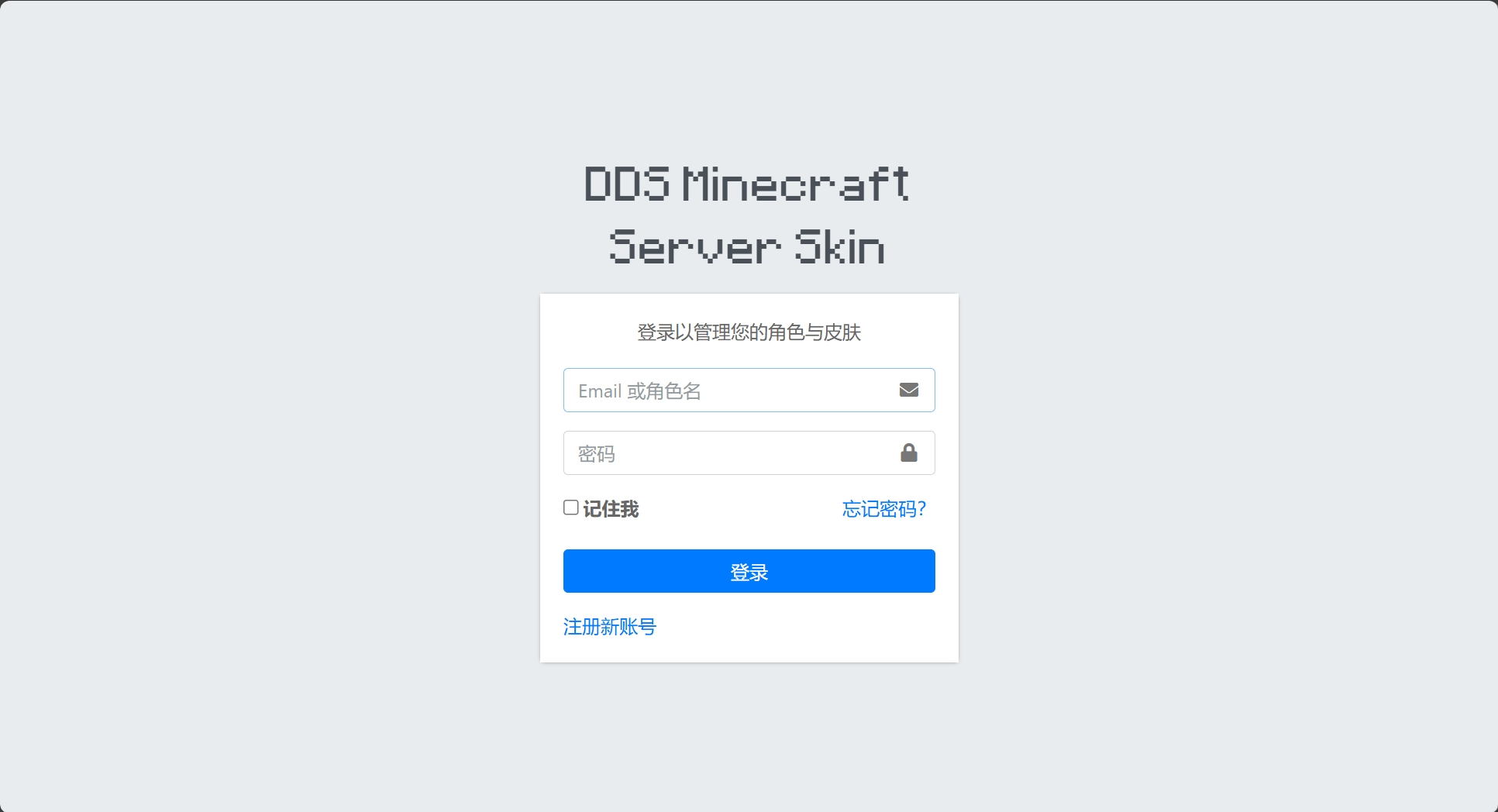
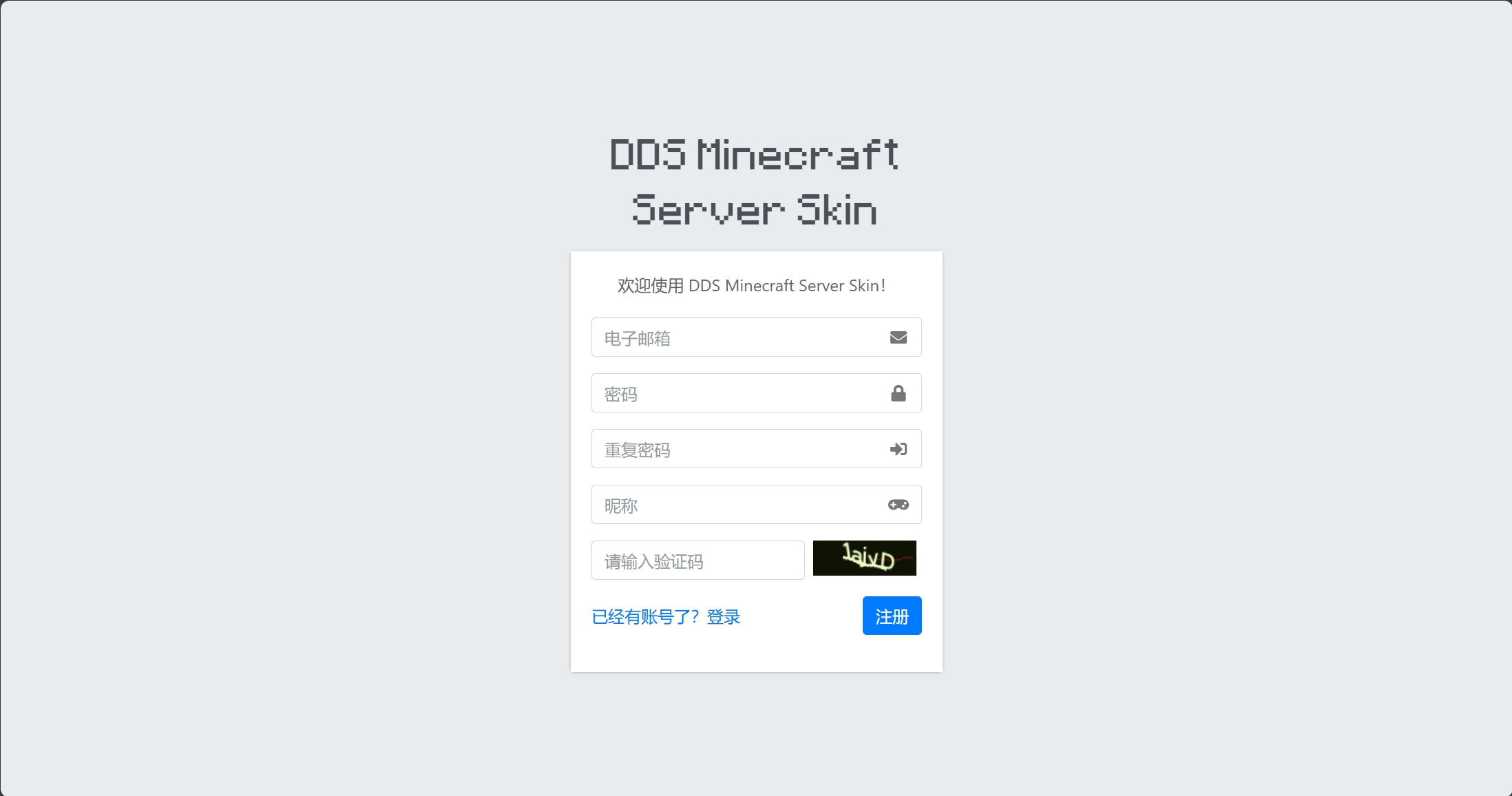
Please register with an email address that you can use normally. Follow the on-screen prompts to enter your information, then tap Register.
Tip: Can't read the captcha? You can click the captcha image to get a new one.
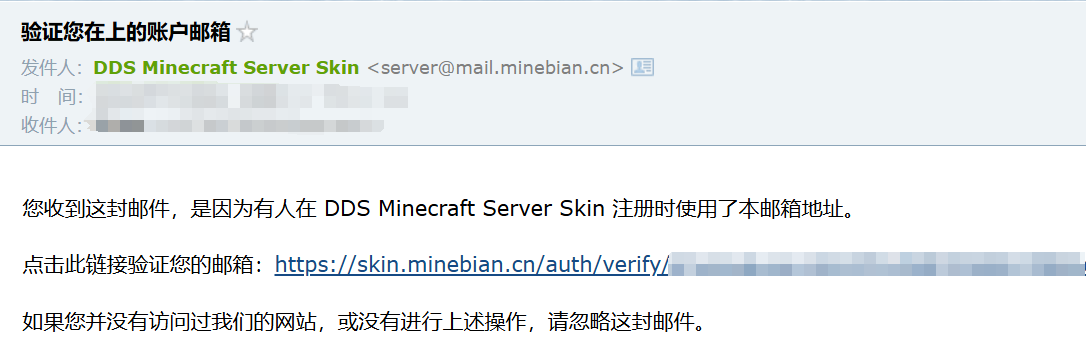
After tapping Register, you'll receive an email verification message from skin@minebian.cn. Click the link in the email, and on the newly opened page, enter your email again. Note: Don't enter the wrong email!
Since the original email address had issues, the emails you receive will now be sent from
skin@minebian.cn.

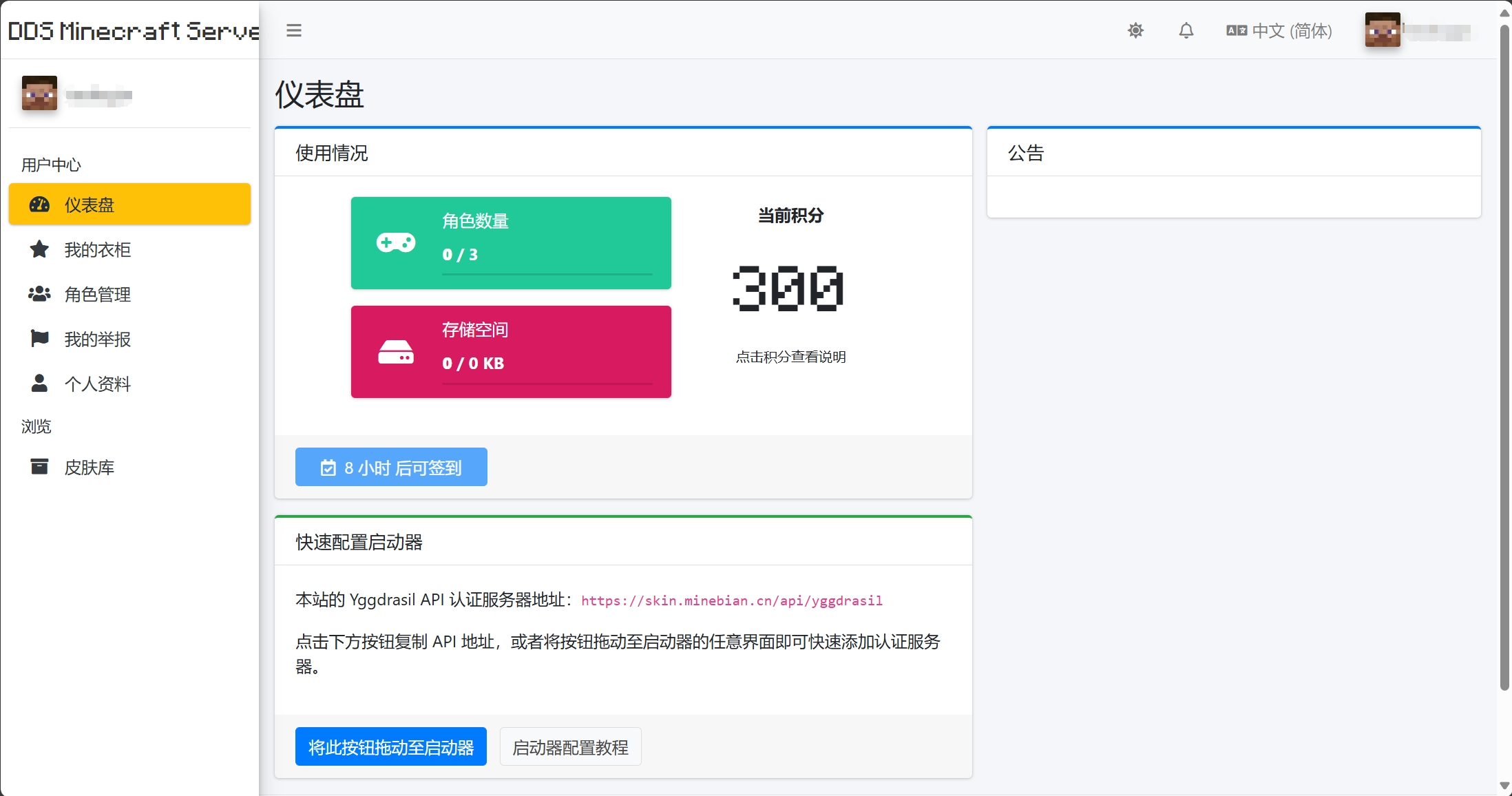
Then you'll be redirected to the user center. Now you can create a character to use.
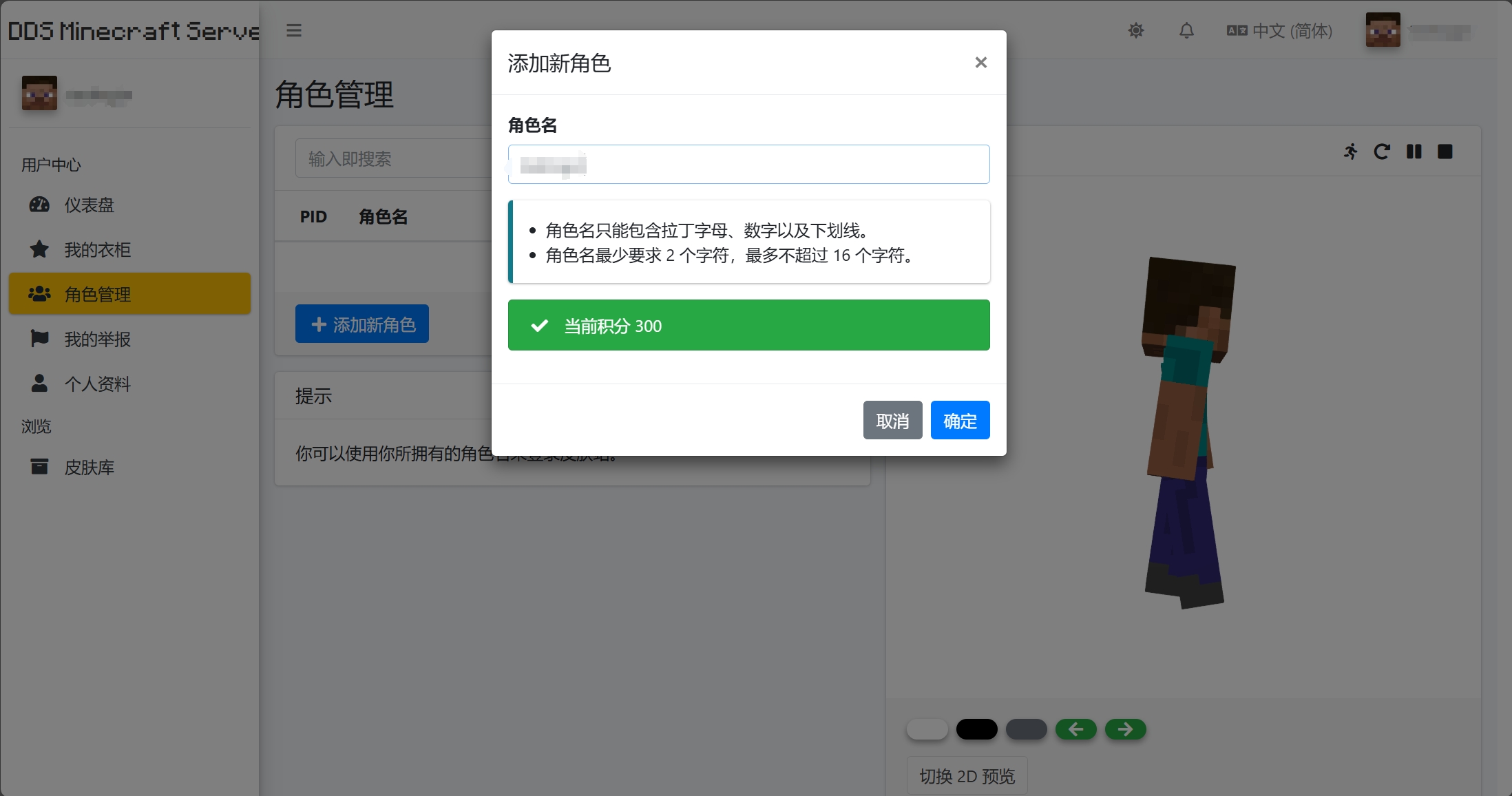
Tap Character Management on the left, then tap Add New Character, enter the ID you want to use, and tap Confirm.

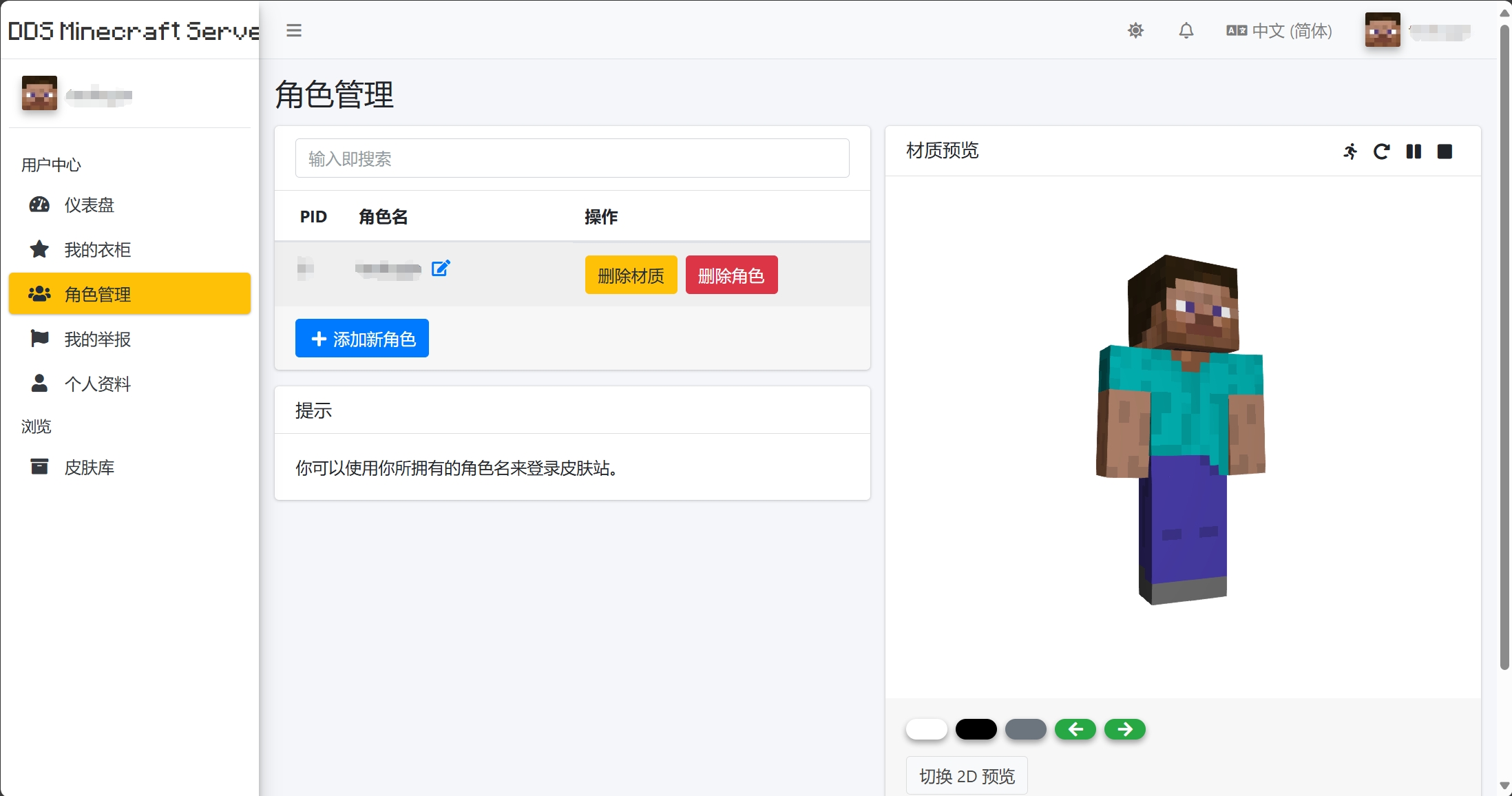
That's it for the skin site setup. Next, we'll configure the launcher to use the skin site for login.
Note: The skin site only serves as a login service — it is NOT used to set your skin. Even if you set a skin on the site, it won't take effect in-game. For how to set your skin, type /skin in the server for details.
Configure the Launcher
Using Plain Craft Launcher 2
(Hereinafter referred to as PCL2) This launcher is primarily for the Windows platform.
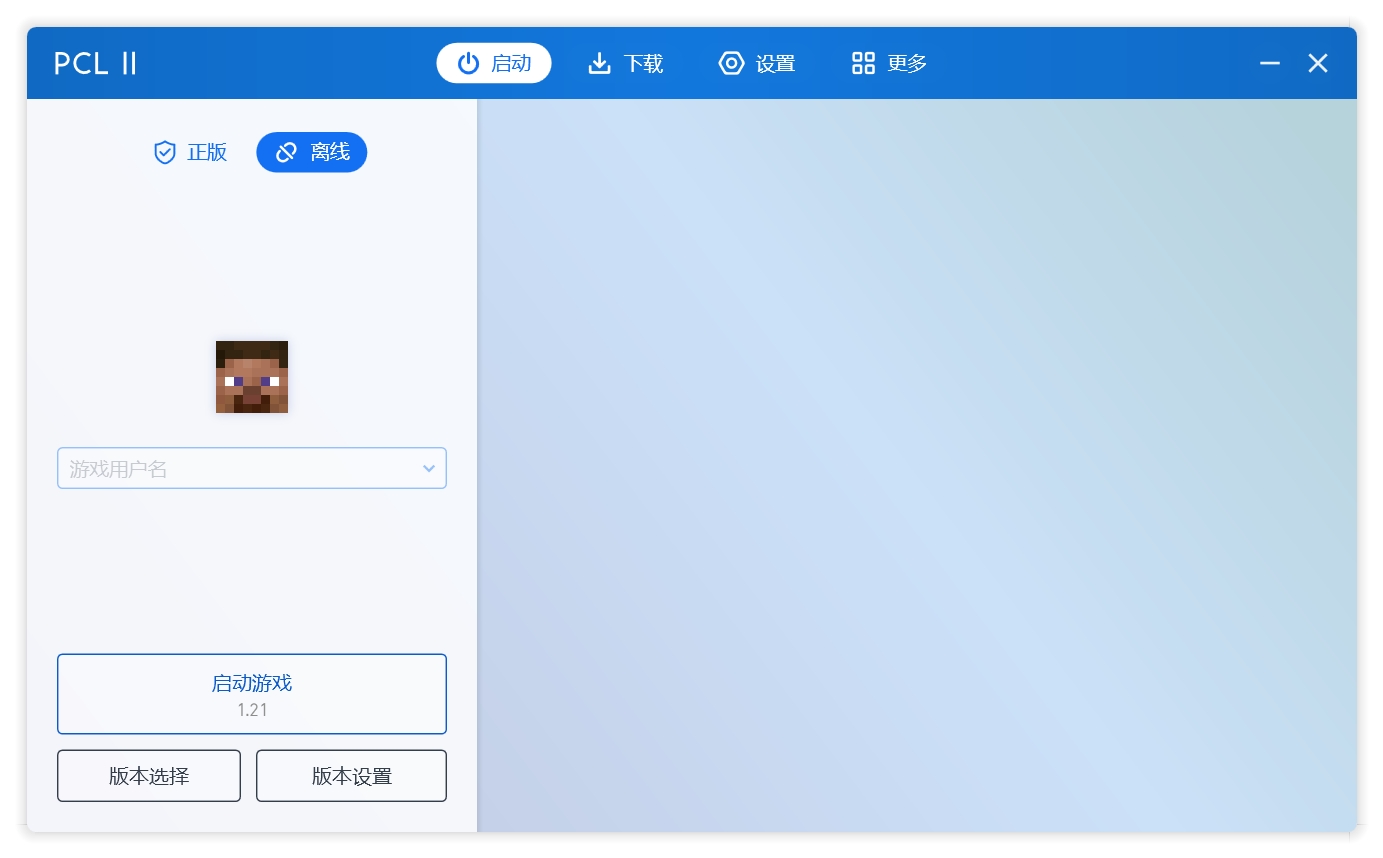
First, make sure you've selected the correct Minecraft version for joining the server. Then tap Version Settings.
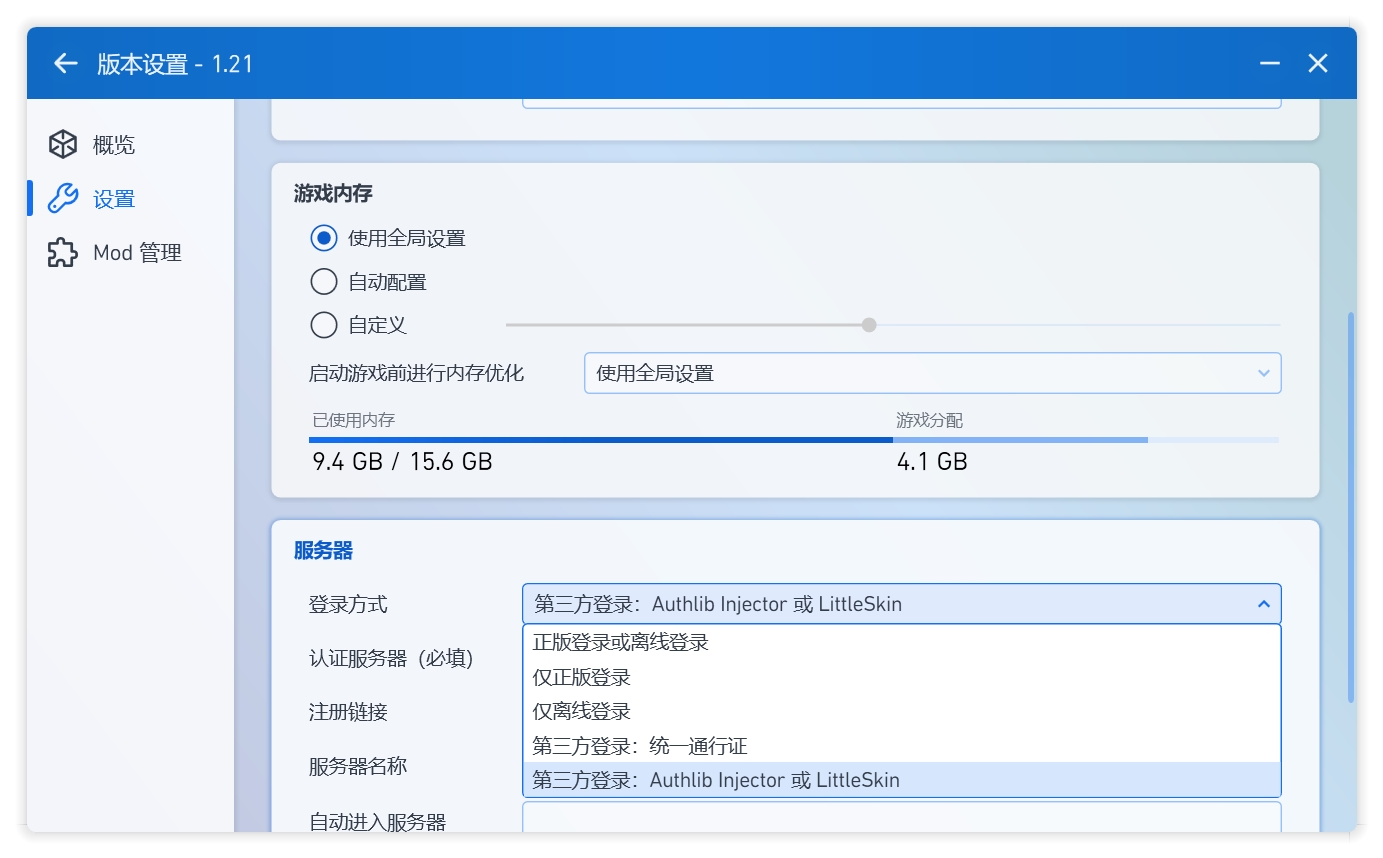
Then tap Settings, find Server → Login Method near the bottom. Change the login method to Third-party login: Authlib Injector or LittleSkin.
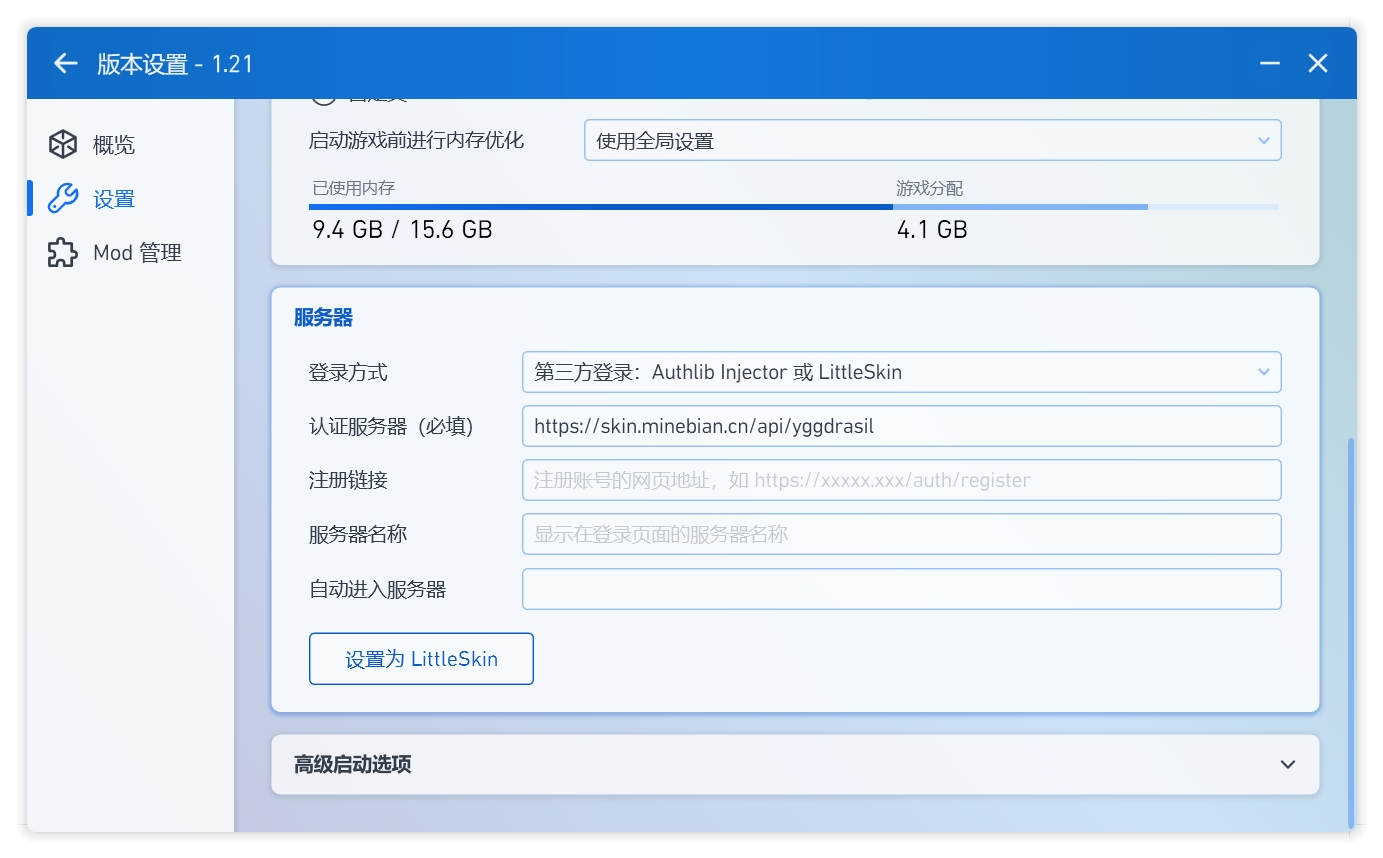
In the authentication server field, enter https://skin.minebian.cn/api/yggdrasil.
Note: Please make sure the address you enter is accurate. You can not only copy the address here, but also find the authentication server address in the skin site's
User Center → Dashboard.
Now, go back to the homepage and enter the account and password you just registered on the skin site.
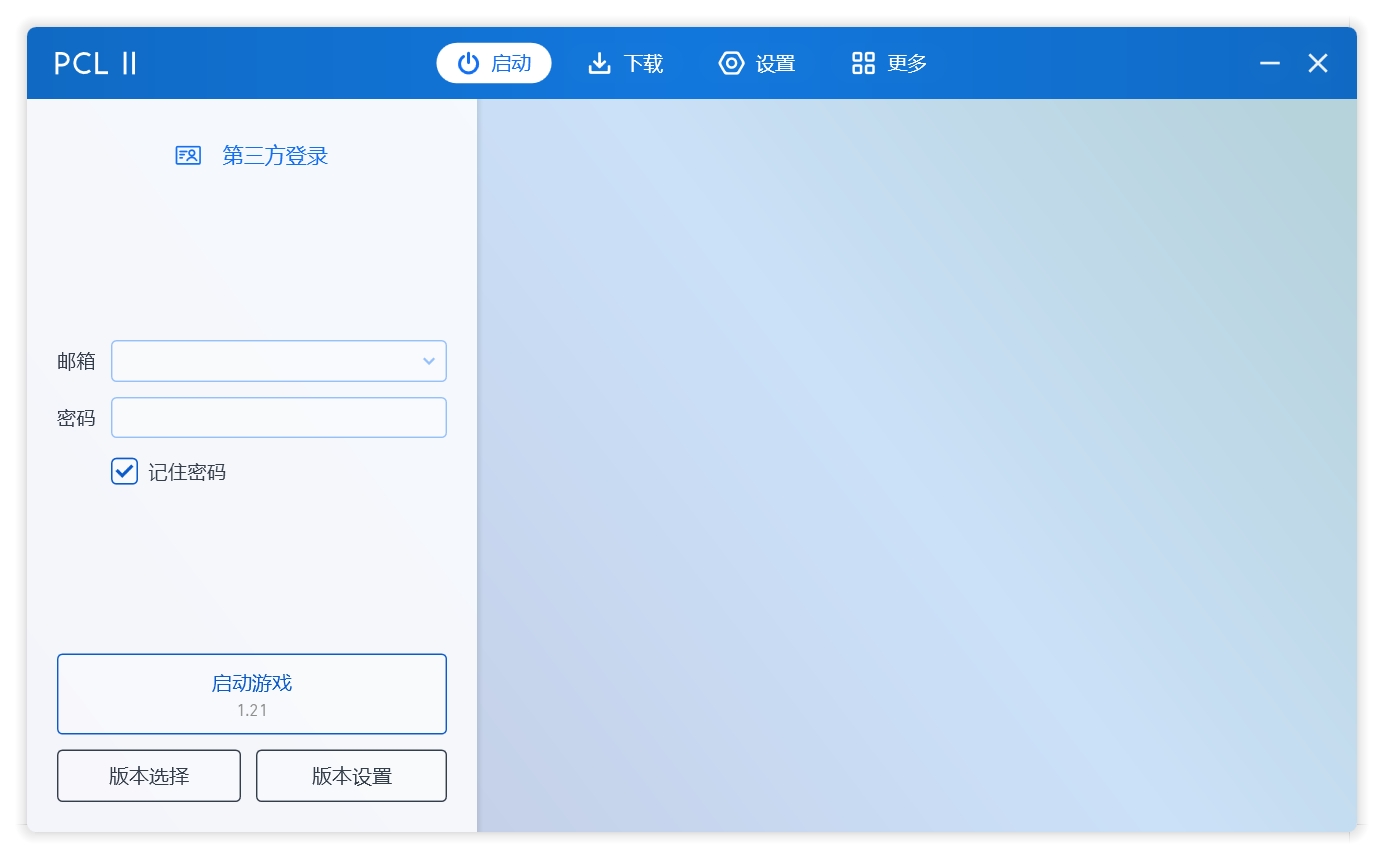
After entering everything, tap Launch Game and you're logged in.
Using Hello Minecraft! Launcher
(Hereinafter referred to as HMCL) This launcher is primarily for Windows, macOS, and Linux platforms.
First, make sure you've selected the correct Minecraft version for joining the server. Then tap the avatar in the top-left corner.
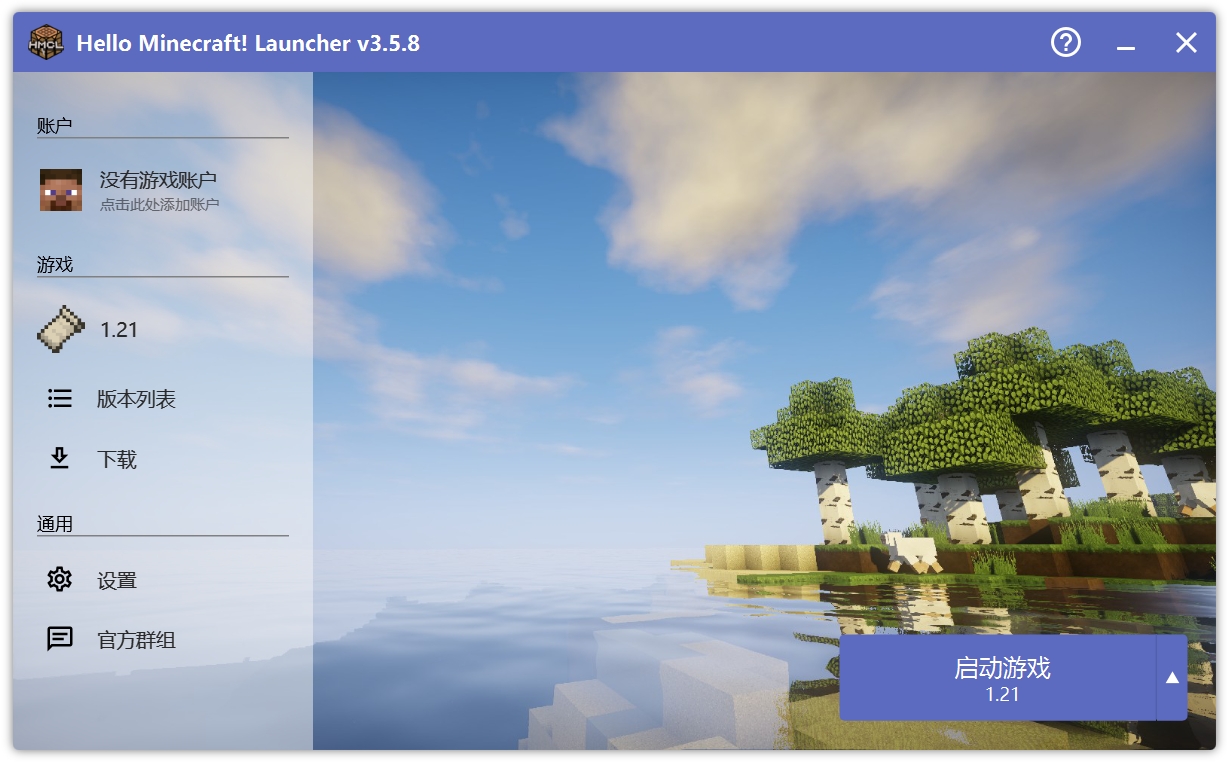
Tap Add Authentication Server in the bottom-left corner.
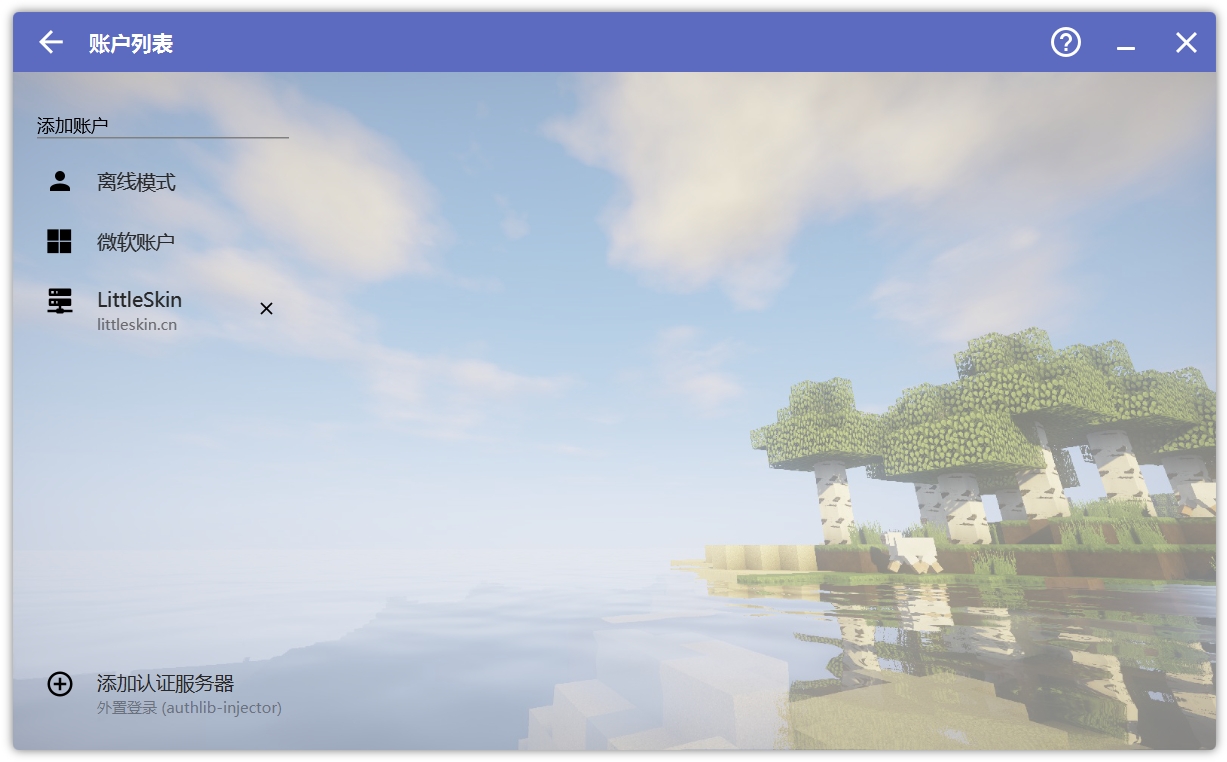
In the authentication server field, enter https://skin.minebian.cn/api/yggdrasil. Then tap Next.
Note: Please make sure the address you enter is accurate. You can not only copy the address here, but also find the authentication server address in the skin site's
User Center → Dashboard.
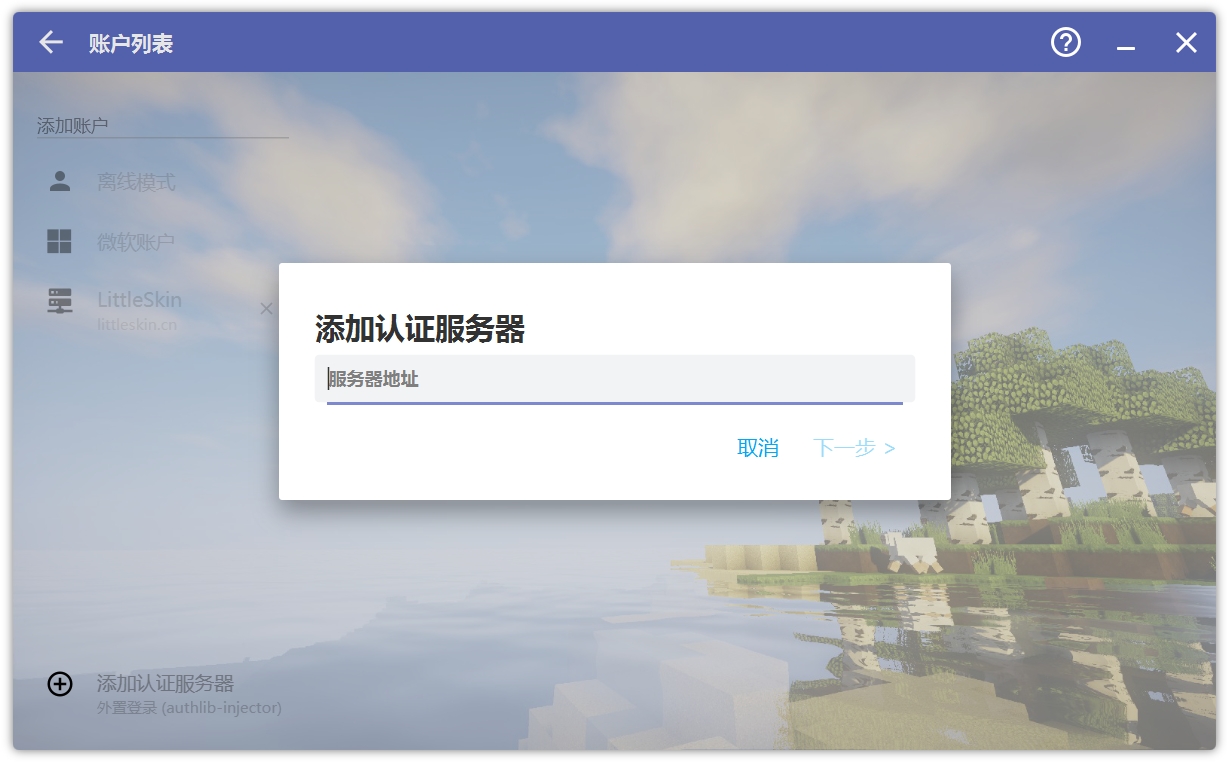
Tap Done.
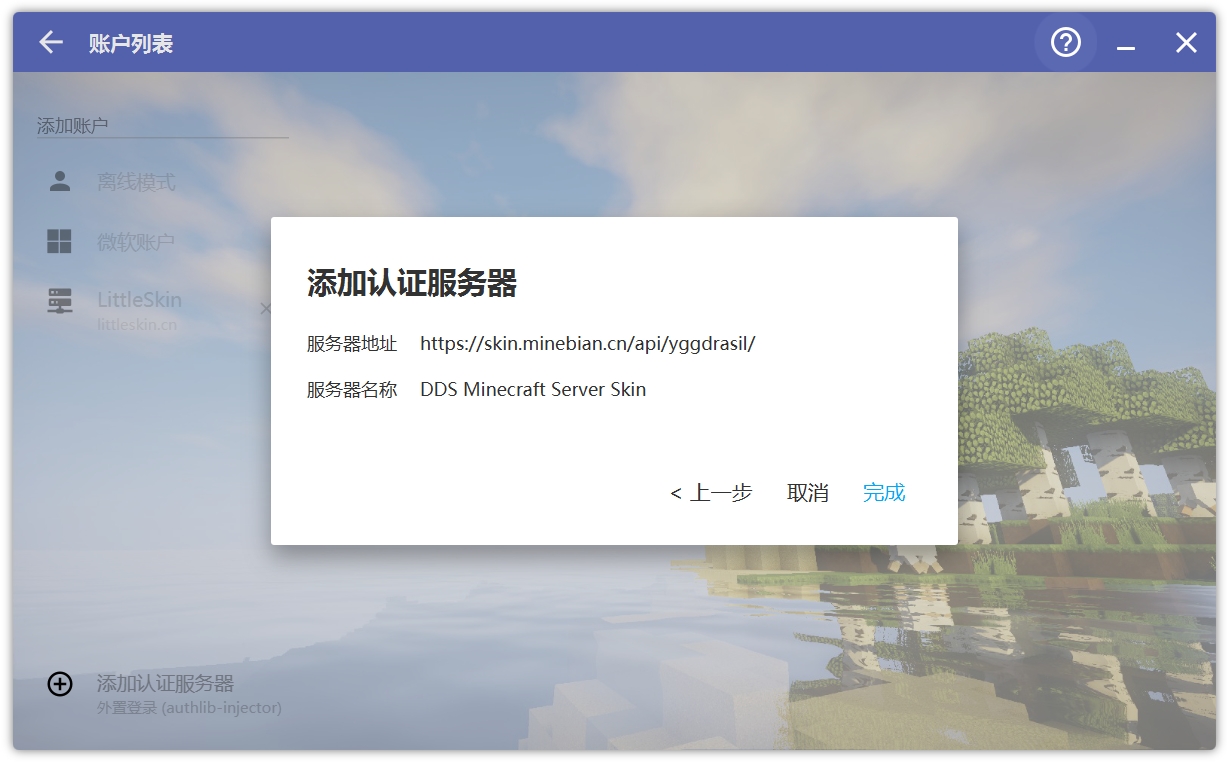
Now, a new login method appears in the account list on the left. Tap the newly appeared DDS Minecraft Server Skin.
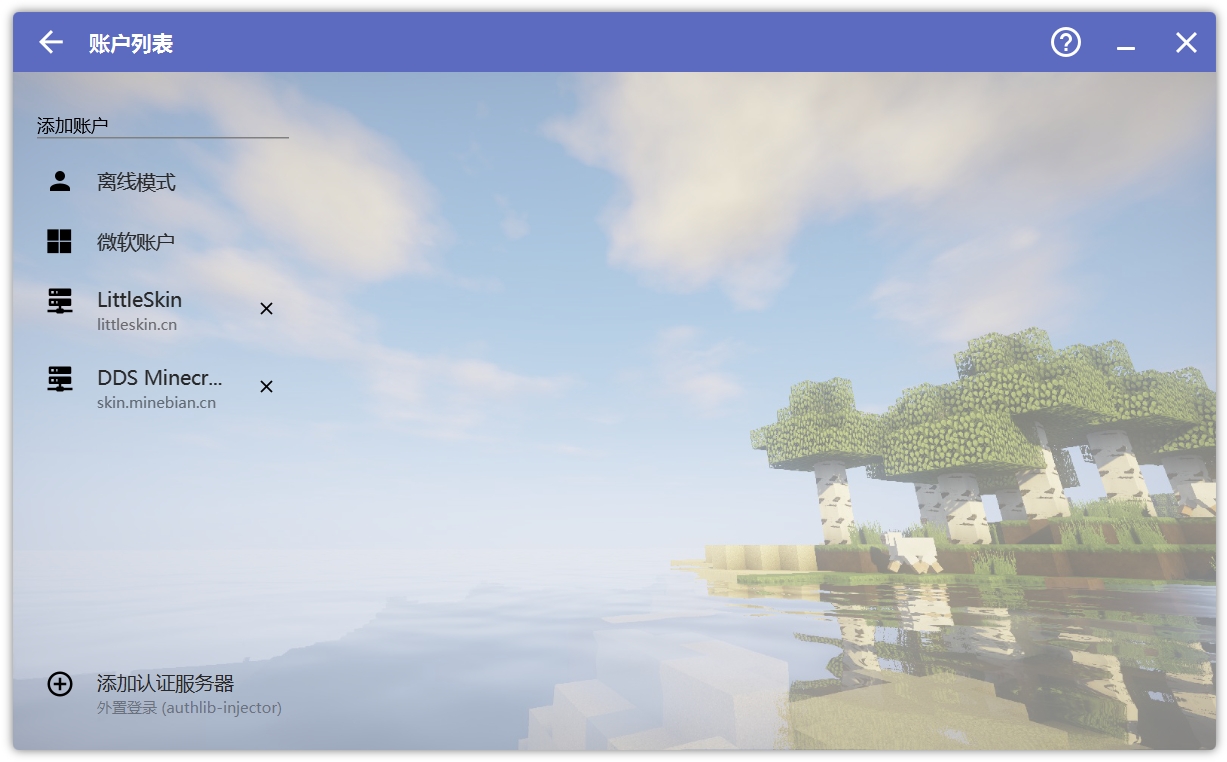
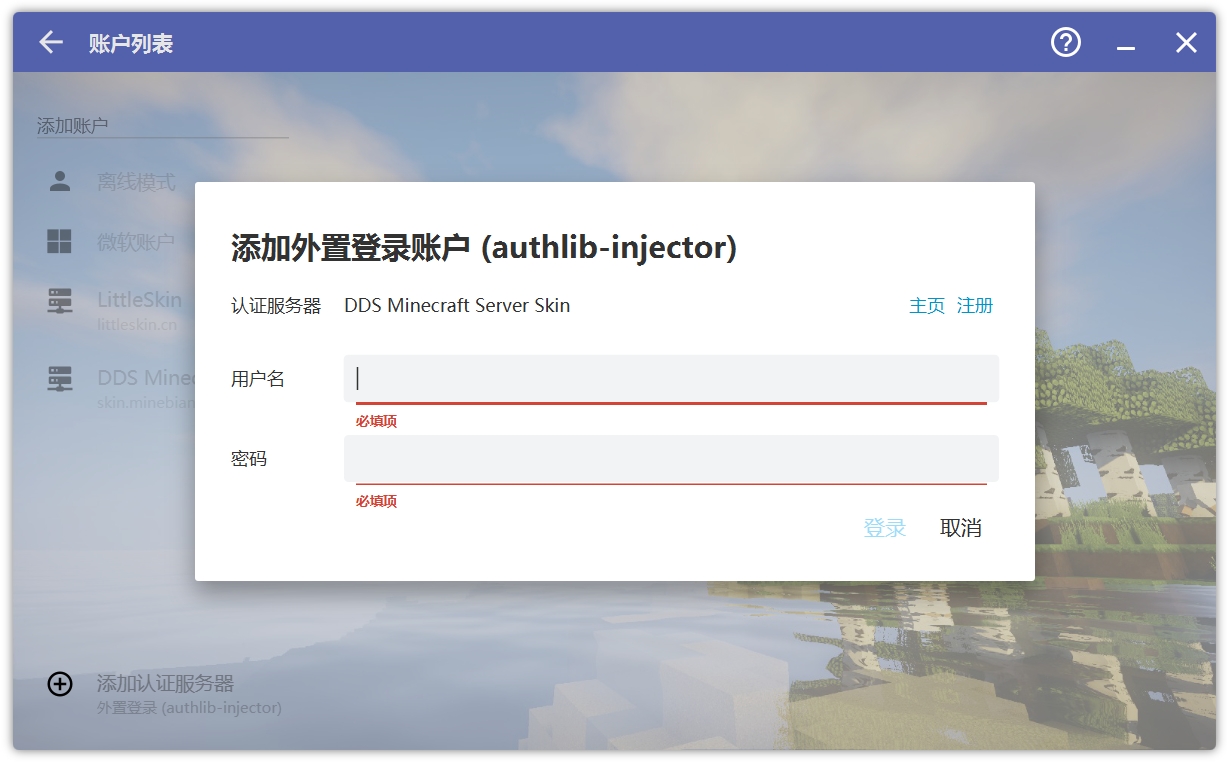
Then, enter the account and password you just registered on the skin site, and tap Login.
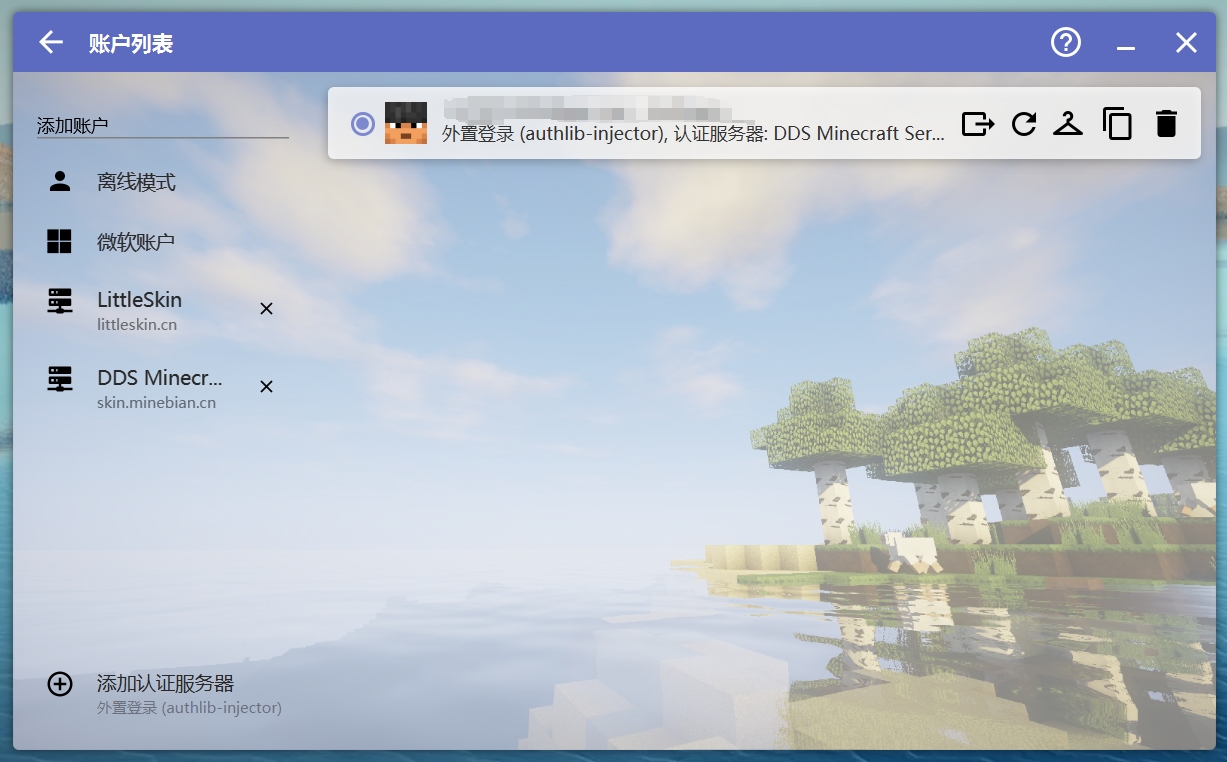
You'll then see a new account appear in the account list on the right. You can use this account to log in to the server.
Using Fold Craft Launcher
(Hereinafter referred to as FCL) This launcher is primarily for the Android platform.
First, make sure you've selected the correct Minecraft version for joining the server. Then tap the avatar in the top-right corner to add an account.
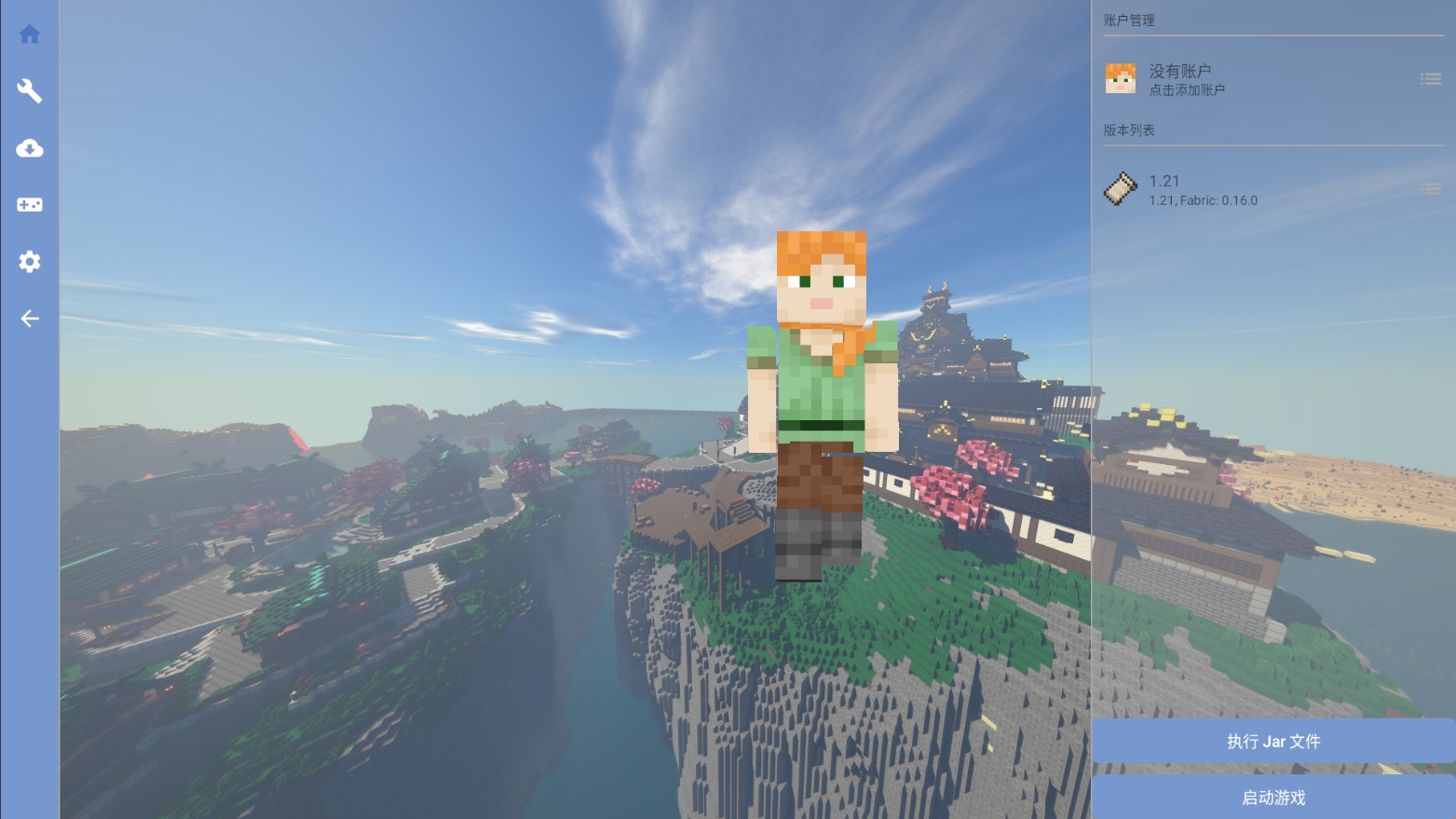
Tap Authentication Server in the bottom-left corner.
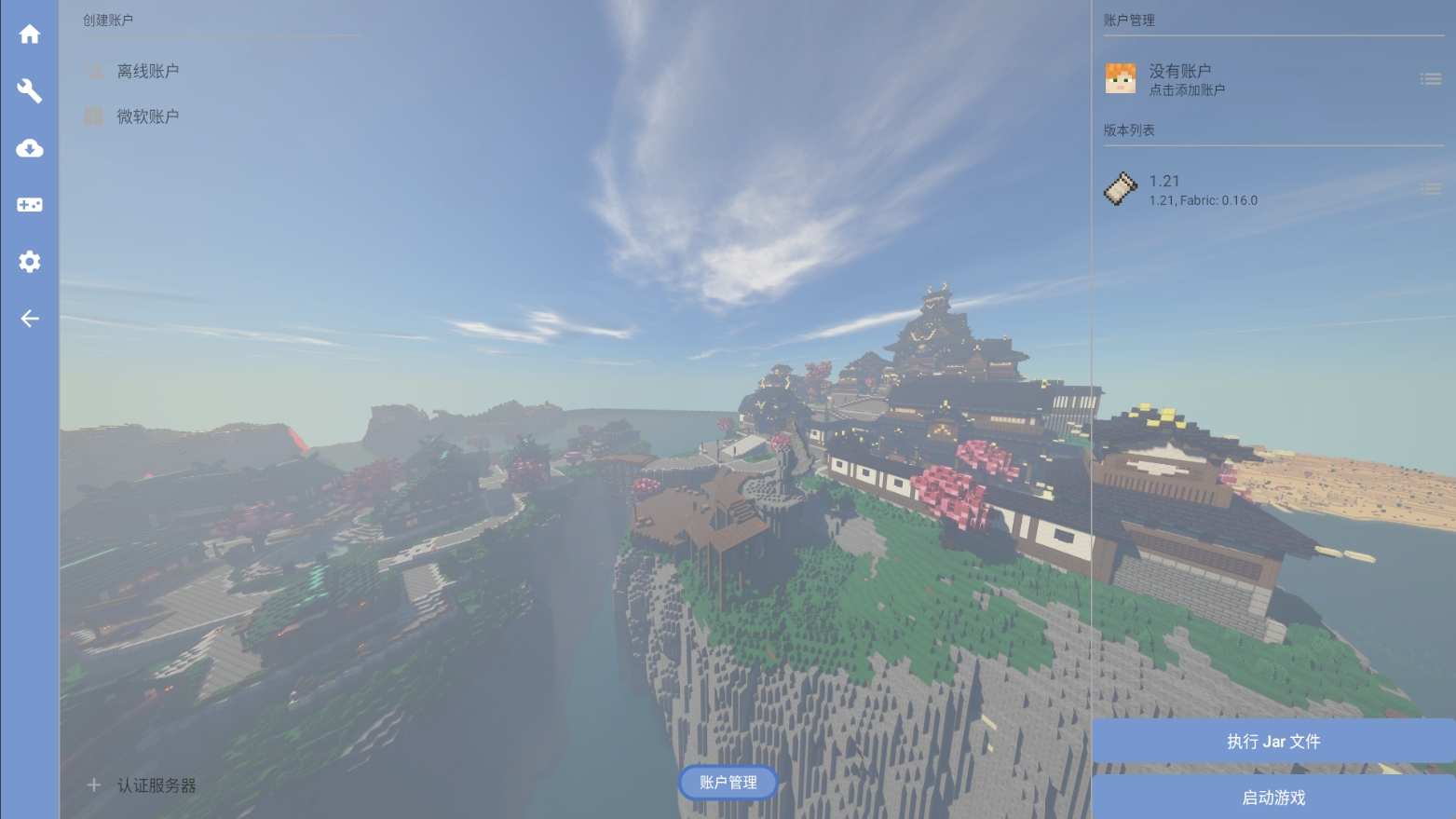
In the authentication server field, enter https://skin.minebian.cn/api/yggdrasil. Then tap Next.
Note: Please make sure the address you enter is accurate. You can not only copy the address here, but also find the authentication server address in the skin site's
User Center → Dashboard.
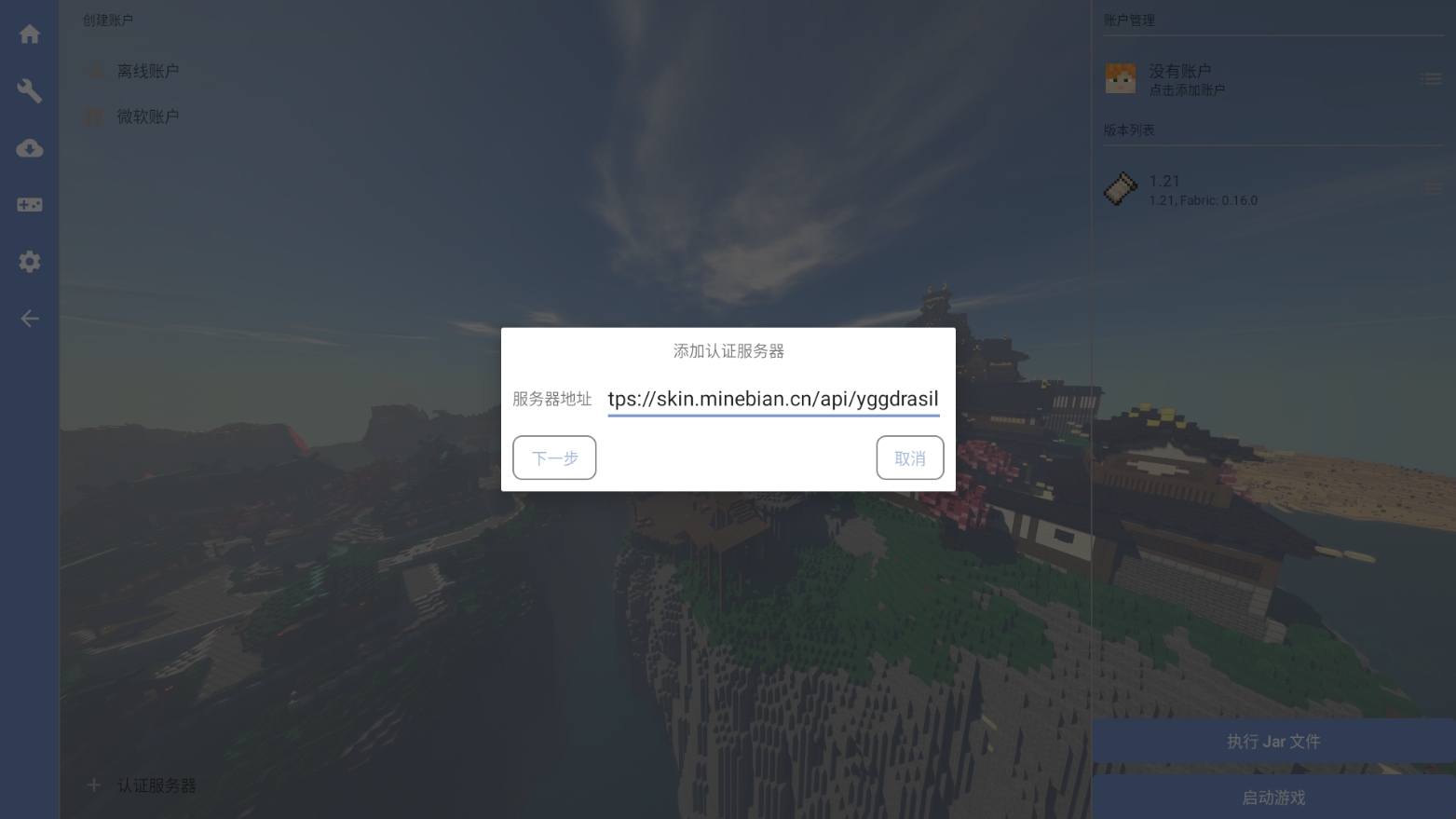
Tap Confirm.
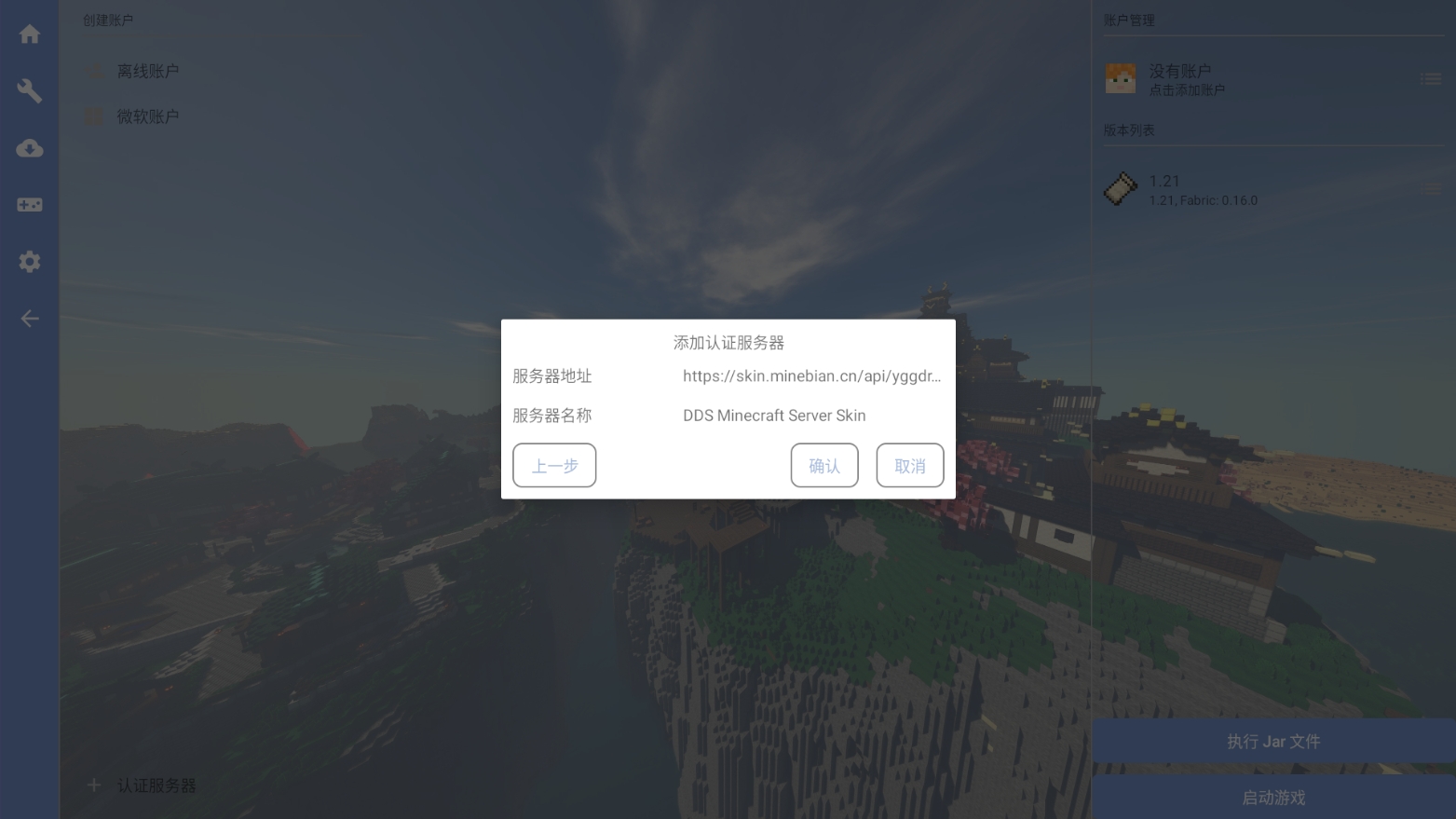
Now, a new login method appears in the account list on the left. Tap the newly appeared DDS Minecraft Server Skin.
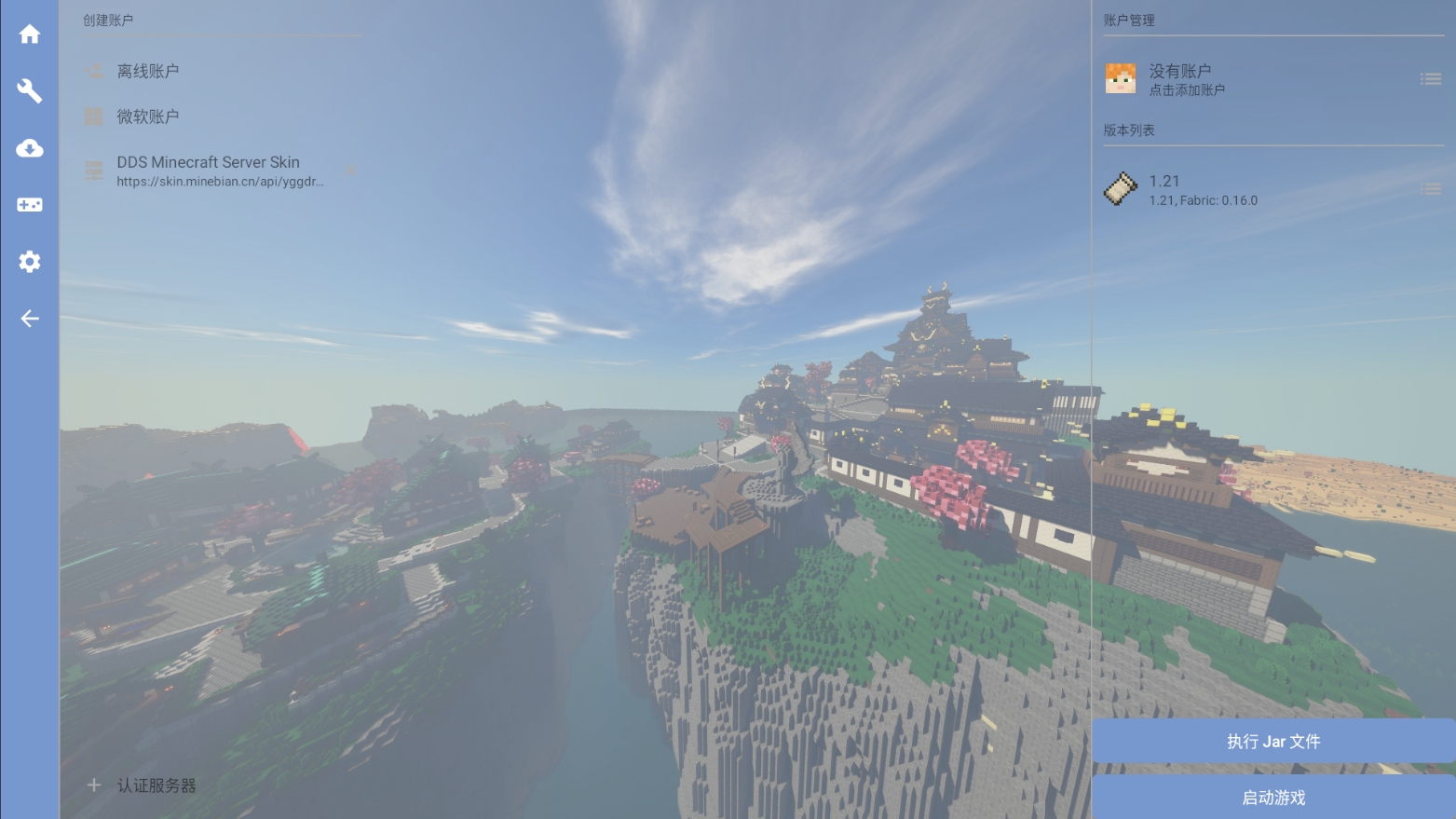
Then, enter the account and password you just registered on the skin site, and tap Login.
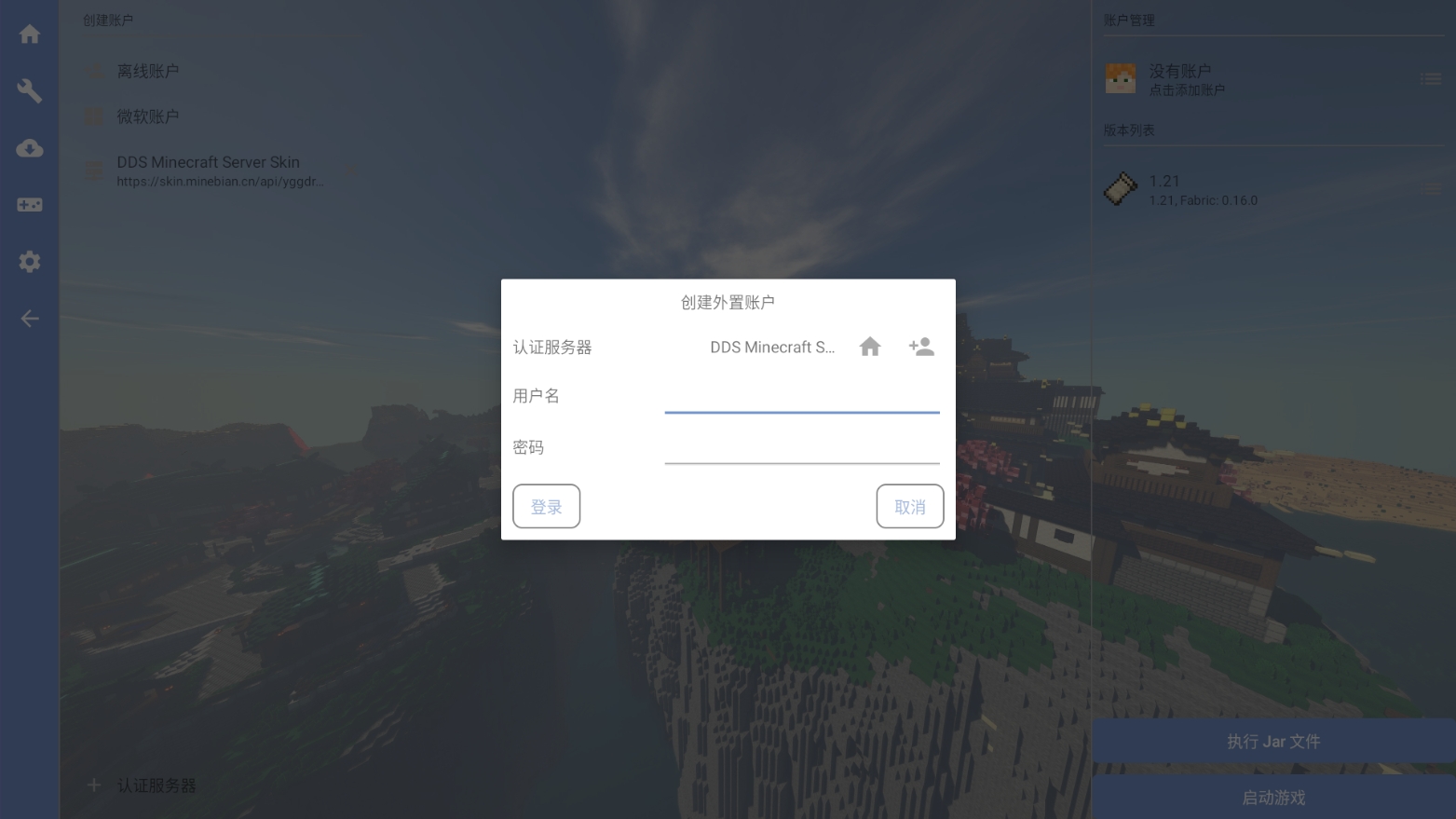
You'll then see a new account appear in the account list on the right. You can use this account to log in to the server.